Here's a small daily annoyance that turns out to be surprisingly hard to fix: a desk with a laptop and a stack of external monitors, all at different brightness. The laptop screen dims from the keyboard. Every external monitor hides its brightness behind a set of tiny physical buttons and a clumsy on-screen menu. When the room gets dark, or the afternoon sun rolls in, you get to walk down the row and adjust each one by hand. Every time.
Nitpicker fixes that. It's a Windows system tray app that drives the brightness of every monitor from a single slider — the laptop panel and the external monitors alike — plus per-monitor contrast and optional automatic day/night dimming.
Just want the download? The Nitpicker tool page has the features, install steps, and FAQ in one place.
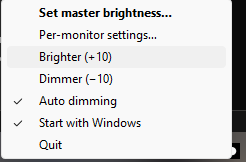
Everything lives in the system tray — one right-click away.
Wait — what's a "nit"?
Fair question, and it's the whole reason for the name. A nit is the actual unit of screen brightness: one candela per square metre (cd/m²). It's the number on the box when a monitor advertises "400 nits" of brightness. The word comes from the Latin nitere, "to shine."
How It Reaches Your Monitors
The trick is that Windows and your monitors already speak a language for this — most software just never asks. Nitpicker sets the internal laptop panel through Windows' WMI brightness interface, and it talks to external monitors over DDC/CI: the same protocol behind those physical brightness buttons. That means real hardware brightness and contrast, not a fake dimming overlay that just paints the screen darker.
It was built and verified on a genuinely awkward setup — a laptop panel plus three identical Philips monitors and two different USB monitors, six displays in all — every one of them driven from a single slider.
What It Does
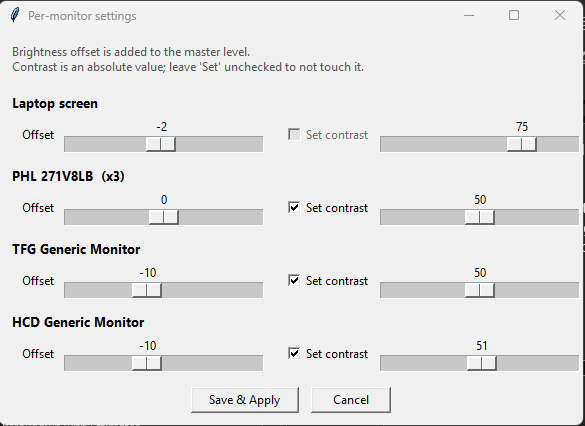
Per-monitor settings — the three identical Philips are grouped into one row (×3), and contrast is greyed out for the laptop panel that can't do it.
The offset trick
Monitors don't agree on what "70%" looks like. One panel at 70 can be noticeably brighter than another at the same number. So instead of forcing every screen to the same value, Nitpicker gives each monitor a brightness offset that's added to the master level. Set a monitor that runs hot to −15 and it stays balanced with the rest no matter where you move the master. Identical monitors are grouped by their hardware ID, so three of the same model share one offset — set it once.
About that "auto" dimming
Phones brighten and dim with a built-in ambient light sensor. Almost no desktop PC has one — and, it turns out, neither do most laptops (a Windows Hello camera is an infrared face scanner, not a light meter). So Nitpicker's auto mode leans on two things that are always available: a sunrise-to-sunset curve computed for your location, and an optional periodic webcam sample that reads how bright the room actually is. Bright room, screens come up; dark room, they ease down. Don't want the camera involved? Leave it off and run on the sun curve alone. Don't want auto at all? It's a single toggle, off by default until you flip it on.
Get Nitpicker
Nitpicker is free and open source.
GitHub: VAROIndustries/Nitpicker
Install
Download Nitpicker.exe from the latest release and run it. No installer, no Python needed. A tray icon appears — right-click for the master slider, per-monitor settings, and the auto-dimming and start-with-Windows toggles.
Or from source:
git clone https://github.com/VAROIndustries/Nitpicker.git
cd Nitpicker
pip install -r requirements.txt
python -m amb
Requires Windows and Python 3.12+ (if running from source).
Check out more free tools and apps at varo.industries/apps.
Frequently Asked Questions
Sources & References
- Nitpicker — VAROIndustries on GitHub
- Candela per square metre (the nit) — Wikipedia
- Nitpicker Tool Page & FAQ — VARØ Industries
- ClaudeTray: A Battery Meter for Your Claude Code Rate Limits — VARØ Industries Blog
- Chameleon: Auto-Switch Wi-Fi When You Dock — VARØ Industries Blog