Here's a small daily annoyance that turns out to be surprisingly fiddly to fix. You want your laptop on one Wi-Fi network at your desk — plugged into the monitor and the dock, sitting next to a fast access point — and a different one when you're roaming around the house or the office. Windows has a setting for almost everything, but not for "use this network when that monitor is attached." So you switch it by hand, every single time, and half the time you forget until something's crawling.
Chameleon fixes that. It's a Windows system tray utility that watches for a specific device — an external monitor, a USB-C dock, anything that shows up in Device Manager — and automatically switches your Wi-Fi to the network you want for that spot. Dock, and it hops over within a couple of seconds. Undock, and it drops back.
Just want the download? The Chameleon tool page has the features, install steps, and FAQ in one place.
Why "Chameleon"?
A chameleon changes color to match its surroundings. That's exactly what this does with your network: the moment you settle in at your desk, it adapts to the Wi-Fi you use there, and it changes right back when you get up and unplug. The name wrote itself — and yes, the tray icon is a little lizard, green when you're docked and grey when you're not.
How It Works
Windows can already connect to any Wi-Fi profile you've saved — the hard part is knowing when to switch. Rather than polling in a loop, Chameleon subscribes to a Windows device event (a WMI/CIM indication on PnP devices), so it reacts within a couple of seconds of your target device appearing or disappearing. When the device connects, it runs the equivalent of netsh wlan connect for your "docked" profile; when it's removed, it switches back to your "undocked" one.
Two details make it well-behaved. First, it only ever switches between networks you've already joined yourself — it never handles passwords and never adds new profiles. Second, it checks your current network before doing anything and skips the switch entirely if you're already on the right one, so there's no pointless disconnect blip. Everything runs locally: no account, no cloud, no telemetry.
What It Does
Finding your device
The one bit of setup is naming the device to watch for. Chameleon ships a helper, Get-AttachedDevices.ps1, that lists everything attached to the machine, grouped by class and indented, so you can copy the right name and wrap it in wildcards (say *Dell U2720Q*). One tip from building it: a monitor on plain HDMI or DisplayPort registers as a Monitor device, but if you dock through a USB-C hub, keying off the dock's own USB device is usually more reliable — it enumerates cleanly the instant the cable seats.
Three ways to run it
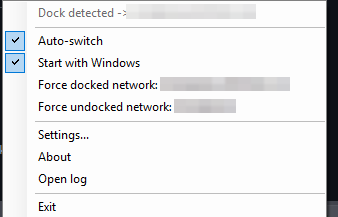
Chameleon comes in three forms so it fits however you work: the tray app with its lizard icon and settings; a headless background watcher you install as a Scheduled Task at logon; and a portable build that runs straight off a USB stick, config and all. The tray app can also be compiled to a single .exe with the included build script.
Get Chameleon
Chameleon is free and open source — plain PowerShell, no modules, no dependencies.
GitHub: VAROIndustries/Chameleon
Install
Download Chameleon-Tray.exe from the latest release and run it. No installer, no dependencies — a lizard icon appears in your tray. Open Settings from its menu, set the device to watch for and your two networks, and you're done. Or run the scripts from source:
git clone https://github.com/VAROIndustries/Chameleon.git
cd Chameleon
powershell -ExecutionPolicy Bypass -File .\Get-AttachedDevices.ps1
powershell -ExecutionPolicy Bypass -File .\Chameleon-Tray.ps1
Requires Windows and PowerShell 5.1+ (both ship with Windows 10/11). The two Wi-Fi networks must already be saved on the machine.
Check out more free tools and apps at varo.industries/apps.
Frequently Asked Questions
Sources & References
- Chameleon — VAROIndustries on GitHub
- Chameleon Tool Page & FAQ — VARØ Industries
- Nitpicker: One Brightness Knob for Every Monitor — VARØ Industries Blog
- EnvForge: A Better Way to Manage Windows Environment Variables — VARØ Industries Blog